Frequently Asked Questions
Everything you need to know about Spool
How do I add music to Spool?
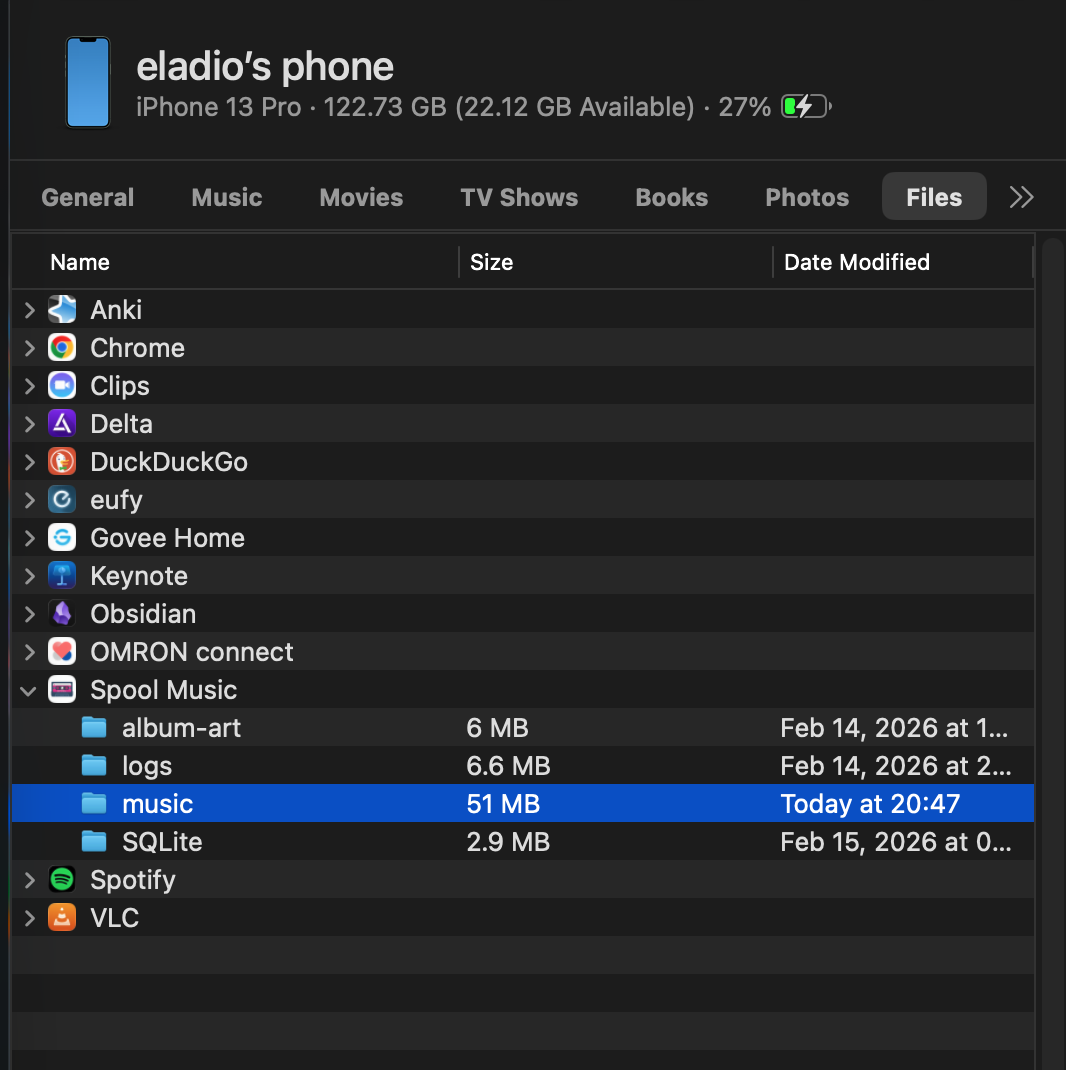
Using a Mac:
- Connect your iPhone to your Mac with a USB cable
- Open Finder (on macOS Catalina or later)
- Select your iPhone from the sidebar
- Click the Files tab at the top
- Find Spool in the app list
- Expand the Spool folder by clicking the arrow
- Drag and drop your music files or folders directly into the Spool folder - look for the "Put your music files here.txt" file, that's the drop zone
- Wait for the files to finish copying
- Open Spool on your iPhone
- Tap the Settings tab
- Tap Sync Library to scan for new music
Using Windows:
- Connect your iPhone to your PC with a USB cable
- Open iTunes (or the Apple Devices app on Windows 11)
- Click on your iPhone icon when it appears
- Select File Sharing from the sidebar
- Find Spool in the Apps list
- Click Add File... or Add Folder...
- Select your music files or folders
- Wait for the files to finish copying
- Open Spool on your iPhone
- Tap the Settings tab
- Tap Sync Library to scan for new music
Supported formats: MP3, M4A, FLAC, WAV, AAC
Tip: For the best-looking library, prepare your files before copying them over - see "How should I prepare my music files?" below.
What audio formats are supported?
Spool supports the most common audio formats: MP3, M4A, FLAC, WAV, and AAC. These cover virtually all music files you're likely to have in your collection.
Make sure each file's extension actually matches its format - a file with a .mp3 extension whose audio is really AAC/M4A (a common artifact of some rips and downloads) may not be recognized correctly. Re-encoding or renaming to the correct extension fixes this.
How should I prepare my music files for the best experience?
Spool looks best when your source files carry complete, accurate metadata and embedded album art before you copy them onto your iPhone. The app reads what's already in the file first, so a little prep work up front goes a long way:
- Tag your files completely. Each track should have Artist, Album, Track Number, and Title tags set. These drive how Spool groups and sorts your library into Songs, Albums, and Artists - missing tags mean missing or miscategorized entries.
- Embed album art directly in the file when you can. Spool will try to fetch missing artwork automatically from Apple's iTunes Search API, but that only works well when the Artist and Album tags are accurate, and it can occasionally match the wrong release for ambiguously-named albums or artists. Art that's already embedded in the file is always shown correctly and doesn't depend on a network lookup.
- Never overwrite tags/art you're unsure about. If you're batch-processing a large library with a tagging tool, prefer one that only fills in missing fields rather than overwriting existing ones - that way you don't lose or corrupt metadata that was already correct.
- Double-check file extensions match their real format (see "What audio formats are supported?" above) - this is a common source of files that silently fail to import correctly.
If you have a large, messy library, batch-tagging tools (many music managers and command-line taggers support filling in missing tags and embedding cover art in bulk) are worth running once before your first sync, rather than fixing tracks one by one inside Spool.
Can I organize my music into folders?
Yes! You can drop files straight into the Spool folder, or organize them into your own subfolders first - both work. For example, you might create a structure like:
- Artist Name/Album Name/songs.mp3
- Jazz/song.mp3
- Audiobooks/book.m4a
When you tap "Sync Library" in Settings, Spool will automatically scan the whole folder and any subfolders to find your music files. The app will organize them by Songs, Albums, Artists, and Playlists regardless of your folder structure.
Is my music stored in the cloud?
No. Spool is completely local - all your music stays on your iPhone. We never upload, sync, or access your music files remotely. No internet connection is required to play your music.
How do I create and manage playlists?
Tap the Playlists tab to see all your playlists. To create a new playlist, tap the "+" button, give it a name, and add songs. You can also import M3U playlist files from your computer.
Spool includes three smart playlists:
- All Songs: Your complete music collection in one place
- Heavy Rotation: Your top 25 most-played songs from the last 30 days
- Top Played: Your 50 all-time most-played tracks
Do I need an internet connection?
No. Spool works completely offline. Once your music is on your device, you can play it anytime, anywhere - even in airplane mode. The only time internet is used is when fetching album artwork, which is optional.
Still have questions?
If you couldn't find the answer you're looking for, feel free to reach out to us:
Email: support@caritos.com